
NEWS
Chrome on Android Tablets Finally Gets This Desktop Feature

Google is finally fixing one of the biggest annoyances for Android tablet users. The tech giant has started rolling out a new feature that brings the familiar desktop bookmark bar to mobile screens. This update promises to make browsing faster and much more productive for everyone.
The change might seem small at first glance, but it solves a huge navigation problem. Users no longer have to dig through hidden menus just to find their favorite websites. It is a clear sign that Google wants your tablet to replace your laptop.
A Familiar Desktop Experience on Mobile
Chrome for Android has historically hidden your saved sites inside the three-dot menu. This required multiple taps just to open a page you visit every day. That design works for small phones, but it wastes the vast screen real estate available on tablets.
The new update changes this behavior completely.
You can now pin your favorite websites directly under the address bar. This layout mimics exactly how Chrome works on a Windows PC or a Mac. It puts your most important links front and center.
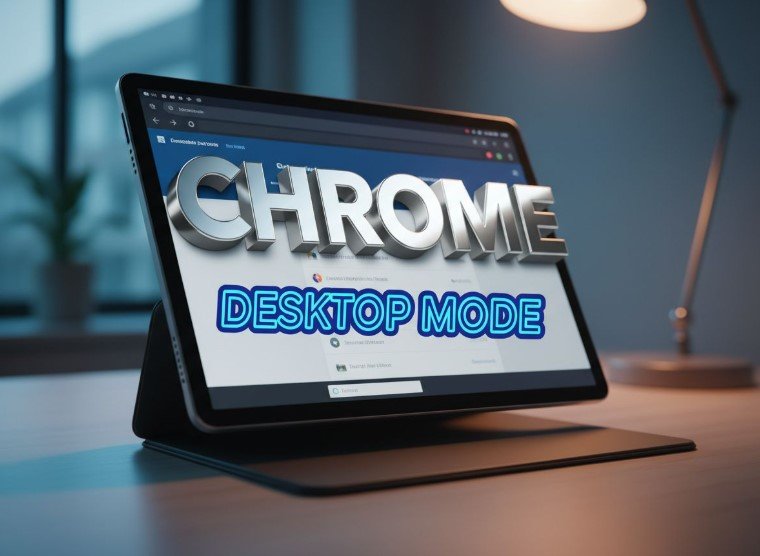
google chrome android tablet settings appearance menu interface
“Consistent access to bookmarks reduces friction and makes Chrome feel like a single, continuous browsing experience.”
This feature turns Chrome on Android into a serious productivity tool.
Power users have requested this desktop-style functionality for years. The ability to see folders and direct links at the top of the browser saves seconds every time you open a new tab.
How to Enable the Bookmark Bar
This feature is not turned on by default for most users. Google has tucked it away inside the settings menu. You need to manually switch it on to see the change.
Follow these simple steps to activate it:
- Step 1: Open the Chrome app on your Android tablet.
- Step 2: Tap the three-dot menu icon in the top right corner.
- Step 3: Select Settings from the list.
- Step 4: Scroll down and tap on Appearance.
- Step 5: Toggle the switch next to Show bookmark bar.
Once you flip that switch, the change happens instantly. You will see a row of favicons and text labels appear under the address bar.
Space is still limited on a tablet screen compared to a large monitor. Chrome solves this by adding an “All bookmarks” folder at the end of the bar. This button gives you quick access to the links that did not fit on the main screen.
Why Phones Are Left Behind
You might be wondering if this feature is coming to your smartphone. The answer right now is no. This specific layout update is strictly designed for the larger screens found on tablets and foldable devices.
Standard smartphones are simply too narrow to make this work. A bookmark bar on a vertical phone screen would look cluttered and squeeze the actual web content.
Here is a quick breakdown of the availability:
| Device Type | Bookmark Bar Support | Reason |
|---|---|---|
| Android Tablets | Yes (Landscape/Portrait) | Sufficient screen width |
| Foldable Phones | Likely (Unfolded) | Resembles tablet interface |
| Standard Phones | No | Screen is too narrow |
This distinction highlights Google’s new strategy. They are finally treating tablets as their own unique category rather than just overgrown phones.
Boosting Tablet Productivity
This update is part of a larger trend we are seeing from Google. The company is slowly updating its core apps to take advantage of larger displays. They want to make the Android ecosystem more competitive with Apple’s iPad.
Features like drag-and-drop and split-screen viewing have improved over the last year. The bookmark bar is the latest piece of that puzzle. It allows for faster multitasking and makes the browser feel more robust.
Students and professionals will likely benefit the most. Moving between a research paper, email, and a project management tool is now seamless. You do not lose your flow by diving into menus.
Google has not released an official timeline for a global rollout. However, users across various regions have reported seeing the option appear in their settings this week.
Make sure your Chrome app is updated to the latest version via the Play Store. If you do not see the option yet, it should arrive on your device very soon.


Orbio Closes $21M From Dawn Capital to Scale AI Frontline Agents

Honda’s Electric Trial Bike Lands in the Top Five at TrialGP Japan

GTA 6’s November Launch Is Reshaping the 2026 Game Calendar

Qorelo Lands $3.5M Seed to Tackle SAP’s 2027 Migration Crunch

Italian Edtech Sirius Game Raises €1.3M to Scale Primary School Play

Bestie Bite Raises €1.5M to Take AI Video Reviews to the US

European Tech’s €2.8B Week Came With a US Acquirer Twist
Rainn Wilson Calls Out Media’s Double Standard on Platner

OnePlus N6 Confirmed for June 30 India Launch as First N-Series Phone

Munich Court: Google Liable for False Answers in AI Overviews
Zcash Patched a Double-Spend Bug as ZEC Climbed 5%

Steam Summer Sale 2026 Locks In June 25 to July 9 Dates

Amazon Scraps Its Stargate Revival After a 20-Week Writers Room

Citigroup Says ETF Outflows Drove Bitcoin’s Crash, Not Strategy’s Sale

Coinbase Invests in Ethena, ENA Jumps 10% on Open-Market Buy

CLARITY Act Floor Vote Likely Shifts to August, Lummis Says

Gigaton Lands $26M to Replace Heavy Industry’s Control Stack
London AI Lab Inherent Raises $50m to Reinvent Science

Quobly’s €115M Bet to Scale Silicon Quantum Computing
SpaceX Frees 5% of IPO Shares While Locking Musk for a Year
-
FINANCE2 weeks ago
Zcash Patched a Double-Spend Bug as ZEC Climbed 5%
-
ENTERTAINMENT2 weeks ago
Steam Summer Sale 2026 Locks In June 25 to July 9 Dates
-
 NEWS1 month ago
Meta Adds AI Replies to Threads, But Users Can’t Block It
-
 ENTERTAINMENT1 month ago
‘Widow’s Bay’ Review: Apple TV’s Sleeper Horror-Comedy Earns Its Fog
-
ENTERTAINMENT2 weeks ago
Amazon Scraps Its Stargate Revival After a 20-Week Writers Room
-
FINANCE2 weeks ago
Citigroup Says ETF Outflows Drove Bitcoin’s Crash, Not Strategy’s Sale
-
FINANCE2 weeks ago
Coinbase Invests in Ethena, ENA Jumps 10% on Open-Market Buy
-
FINANCE2 weeks ago
CLARITY Act Floor Vote Likely Shifts to August, Lummis Says