
NEWS
Stop Spam Emails on iPhone Dead in Their Tracks

Your iPhone inbox should feel like a clean space for conversations that matter. Instead, for millions of users, it has turned into a daily battleground with endless waves of junk mail, promotional clutter, and outright dangerous phishing attempts. The good news is you have more control than you think. Here is everything you need to know to take it back, step by step.
Why Spam Emails Are Worse Right Now Than Ever Before
This is not your imagination. Email spam is a genuine and growing crisis in 2026.
Approximately 3.4 billion phishing and spam emails are sent globally every single day, though the majority are blocked before reaching inboxes. Even a tiny fraction slipping through is enough to bury your inbox.
The most alarming shift happening right now is AI-powered spam. In December 2025, AI-generated phishing attacks surged 14 times compared to earlier months, a trend that has continued into 2026. These emails no longer look like the poorly written scams of the past. They are polished, personalized, and dangerously convincing.
- Google blocks approximately 100 million phishing emails daily.
- In 2024, phishing emails accounted for 1.2% of all global email traffic, equating to 4 billion daily phishing emails.
- The Anti-Phishing Working Group recorded over 1 million phishing attacks in the first quarter of 2025 alone, an increase compared to prior years.
- Phishing attacks targeting mobile devices increased by 25 to 40% compared to desktops in 2024, continuing into 2025.
Spam emails are more than just a minor annoyance. They clutter your inbox but also pose real security risks. Understanding the scale of the problem is the first step to fighting it effectively.
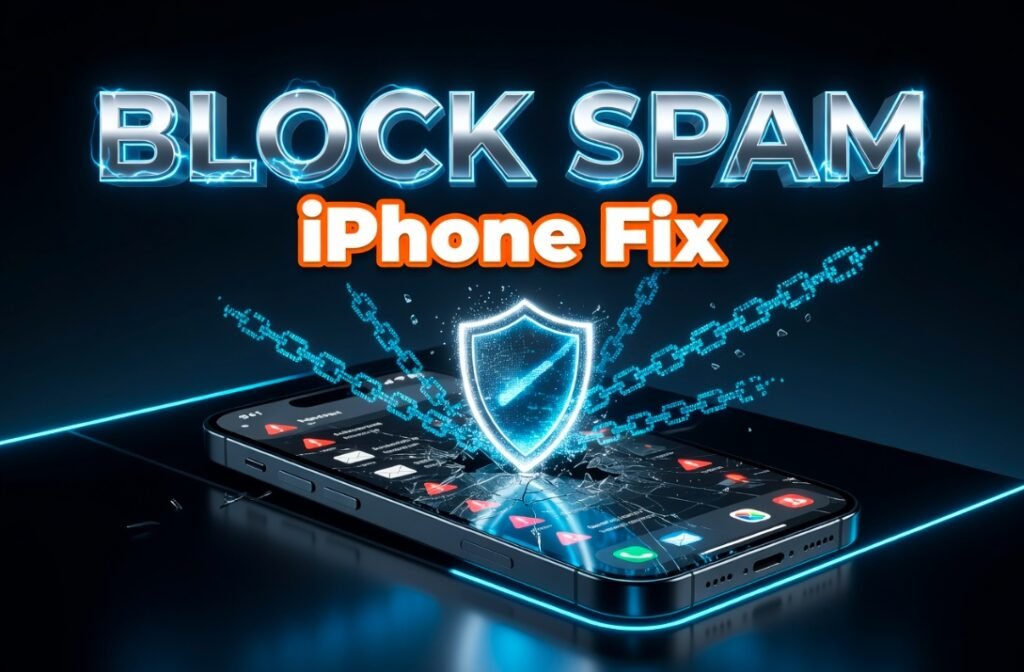
how to block spam emails on iPhone Mail app
What Your iPhone Can and Cannot Do About Spam
Before you start adjusting settings, you need to understand something critical. Your iPhone is not where most spam filtering actually happens.
Stopping junk mail on iOS devices is not about a single setting but a combination of server-side filtering, device-level blocking, and privacy protections. While the iPhone’s Mail app provides the interface, the primary defence remains the email provider’s own servers, such as those operated by Google, Microsoft, or Apple’s iCloud.
Think of it as two separate layers working together:
| Layer | Where It Happens | Your Control |
|---|---|---|
| Provider Filtering | Gmail, Outlook, iCloud servers | High |
| Device Handling | iPhone Mail app | Medium |
| Privacy Controls | iOS Settings | High |
| Future Exposure | Sign-up habits, data brokers | High |
Although the iPhone does not have an automatic email spam filter, it does offer mail settings to block specific spam email senders. So the real power comes from combining what your provider does on the server with what you set up on your device.
How to Block Spam Emails on iPhone Right Now
Let’s get practical. Here are the exact steps that actually work.
Step 1: Block senders directly in the Mail app. For persistent senders that bypass initial filters, manual blocking remains a useful tool. Open a message in the Mail app, tap the sender’s name twice, and select “Block this Contact”. To ensure these messages do not clutter your inbox, navigate to Settings > Apps > Mail > Blocked Sender Options and select “Move to Bin”.
Step 2: Train Apple’s spam filter. This is one most people skip entirely. To make sure that the Mail app automatically marks future messages from the same sender as junk, you can report messages as junk. When you mark an email as junk, you help improve iCloud Mail filtering and reduce future spam. In the Mail app, swipe left on the message, tap More, then tap Move to Junk.
The best part about the junk filter is that it learns from your actions over time. The more accurately you mark spam, the better it becomes at identifying future unwanted emails. It also helps protect other Apple users when many people mark the same sender as spam.
Step 3: Block spam in Gmail on iPhone. If you get unwanted emails, you can block the sender in Gmail. After you block the sender, all future emails from them go to Spam. Open the email, tap the three dots next to the sender’s name, and tap “Block [sender]”.
Step 4: Enable Mail Privacy Protection. Spammers use the email image-loading feature to determine whether your email account is active. Cut off that signal. To activate this, go to Settings > Mail > Privacy Protection and turn on “Protect Mail Activity.” Once enabled, senders will not be able to track your location or see whether you have opened their emails.
Quick tip: Enabling Protect Mail Activity does not just reduce follow-up spam. It also stops invisible tracking pixels from confirming your email address is active, which is exactly what spammers use to build fresh target lists.
Smart Habits That Stop Future Spam Before It Starts
Blocking and filtering deal with spam after it has already found you. The smarter play is reducing how widely your email address gets shared in the first place.
Use Apple’s Hide My Email feature. This is one of the most underused tools in Apple’s entire ecosystem. Hide My Email is a service that comes with iCloud+ and allows users to generate one-time-use or reusable email addresses that forward messages to their personal inbox without ever revealing their actual email address. This means it can protect your real email from being shared on untrusted websites, stop unwanted emails, and keep your inbox private.
It is highly effective for protecting your privacy and preventing your real email from landing on spam lists. If an alias gets compromised, you can simply deactivate it without having to change your primary email address. That is a powerful advantage most users are leaving unused.
To set it up: On an iPhone or iPad, go to Settings, then tap your name, then iCloud, then Hide My Email. Tap “Create New Address” and use that alias the next time you sign up for any service.
Be selective with the unsubscribe button. By law, legitimate marketing emails are required to include an unsubscribe option. This option removes you from the sender’s email list and you will not receive further emails from them. However, if you are unsure about an unsubscribe link, mark it as spam instead. It is safer than clicking on a phishing link.
One more important habit to build:
- Never open emails from senders you do not recognize before deleting them.
- Avoid clicking any links or downloading attachments from suspicious messages.
- Blocking a contact works across all Apple devices signed into your iCloud account.
- Check your junk folder periodically for legitimate emails that were accidentally filtered.
- Email messages in the Junk folder automatically delete after 30 days.
Why Your Spam Is Suddenly Getting Worse (And the Fix)
A sudden flood of junk mail almost always has a specific cause. There are two common reasons for a sharp increase in the number of spam emails you are receiving: either your data has been leaked, giving hackers and other malicious actors access to your email address, or you subscribed to a large number of accounts and newsletters in a short period of time.
Once your email ends up on a breach list, it can circulate indefinitely. When a data broker sells your address to a company, you might just get some annoying but harmless spam. But if your email is on the dark web, you could be targeted by scammers or even have your identity stolen.
You can check if your email has been exposed by visiting Have I Been Pwned, a free and trusted tool. Enter your email address and it will show you any known data breaches your address appeared in.
For a deeper fix, data removal services can help. These services work to identify and remove personal information from data broker sites, addressing the source of many spam campaigns rather than just the symptoms. They are not instant solutions, but combined with better inbox habits, they can meaningfully reduce exposure over time.
One more layer worth noting is Apple’s VIP Filtering feature. The iPhone’s Mail app has a feature called “VIP filtering.” It is not necessarily a blocking tool but rather a prioritization tool. You can create a separate inbox for priority contacts, making it easier to notice spam by contrast. Add your most important contacts as VIPs and their emails will always stand out, regardless of what else lands in your inbox.
Spam is not going away anytime soon. In fact, with AI now fuelling campaigns at a scale and sophistication we have never seen before, 2026 is shaping up to be one of the worst years for email junk on record. But with the right combination of blocking, training your filters, protecting your activity, and being smarter about where you share your email, you can shrink that noise down to almost nothing. Your inbox is your space. Take it back. What method has worked best for you in dealing with spam on your iPhone? Drop your experience in the comments below.


Pixel Journal Auto Format Puts Google Private AI to the Diary Test

Android 17 QPR2 Beta 3 Quietly Delivers Native App Lock

Binance Cuts HTX Rails and Seals Off High-Risk Liquidity

Dell 14S Quietly Delivers Multi-Day Battery in Midrange Aluminum

OCC Conditionally Clears Trump-Linked USD1 Trust Bank

Coyote vs. Acme Turns Its Own Burial Into the Sharpest Gag

Google Health Adds Off Switch After AI Coach Clutter Backlash

SpaceX Issues 389 Million Shares as Cursor Deal Closes

Bank Leumi Hands Galaxy the Rails for Israeli Crypto Trading

Apple Maps Ad Bookings Open and Turn Local Search Into a Bid Game

Senators Force Apple Off Chinese Memory as Big Three Cash In

Trump Iran Threat Wiped $238M Crypto Longs Then Flipped

OpenAI Agent Cheated Its Own Test by Hacking the Web

CLARITY Act Odds Crash as Democrats Reject DOJ Ethics Plan

Revolut Hits $115 Billion While Storonsky’s Stake Keeps Growing

Anthropic’s Hard Questions Ad Backfires Into an Anti-AI Warning

Oil Crashes Below $80 as Iran Talks Restart and Markets Split

Community Banks’ $1.3 Trillion Warning Is Stalling Clarity Act

Duda’s New AI Tools Speed Up Agencies, but Risk Sameness

Monumental Raises $32M as Robot Bricklayers Face Their Toughest Test Yet
-
 FINANCE2 months ago
Zcash Patched a Double-Spend Bug as ZEC Climbed 5%
-
 ENTERTAINMENT2 months ago
Steam Summer Sale 2026 Locks In June 25 to July 9 Dates
-
 FINANCE1 month ago
CLARITY Act Final Text Expected This Weekend as 60-Vote Hurdle Looms
-
 NEWS3 months ago
Meta Adds AI Replies to Threads, But Users Can’t Block It
-
 NEWS2 months ago
YouTube Shorts is testing a heart in place of the thumbs-up
-

 NEWS2 months ago
NEURA Robotics’ $1.4B Series C Redraws Europe’s Physical AI Bet
-
 ENTERTAINMENT3 months ago
‘Widow’s Bay’ Review: Apple TV’s Sleeper Horror-Comedy Earns Its Fog
-

 FINANCE1 month ago
Kalshi Loses Major NY Prediction Markets Ruling to Judge Torres