
NEWS
Microsoft Copilot Button Rollback Exposes the AI Interface Tax

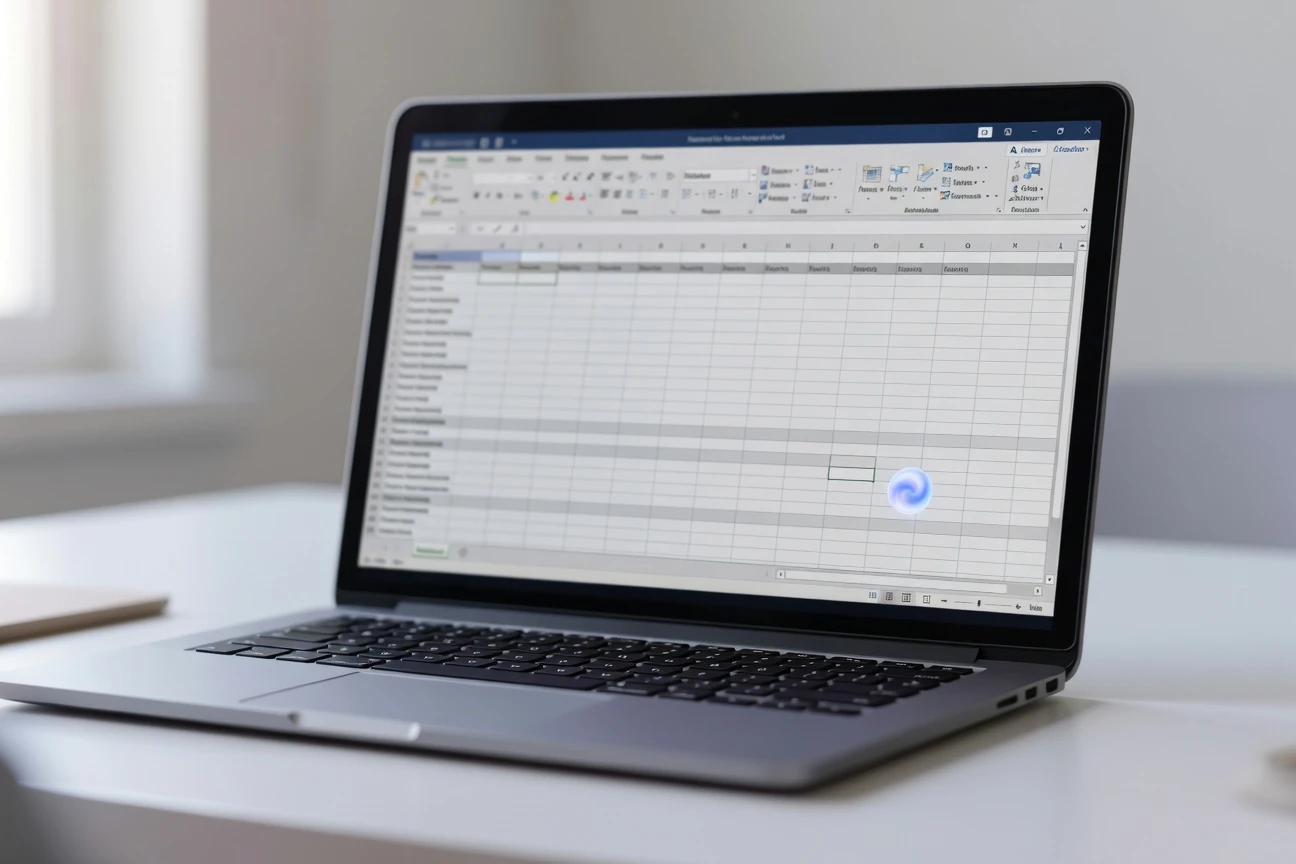
The Microsoft Copilot button rollback gives Word, Excel and PowerPoint users a way to move the artificial intelligence (AI) shortcut back to the ribbon after Microsoft’s floating control covered working space in Office documents. The change keeps the assistant available, but shifts the choice of placement back to users as the wider rollout continues.
That small concession matters because the button became the metric. Microsoft Corp., the software and cloud company behind Microsoft 365, found that a persistent corner shortcut made people engage with the assistant more often. The same placement also made Office feel less like a workbench and more like a web page with a chatbot glued to it.
The Rollback Microsoft Had to Make
Microsoft now says it is adding a Move to ribbon option for customers who prefer the older Office layout. In the Copilot Dynamic Action Button guidance, the company says users will soon see that command when they right-click the floating button.
The new control applies to Word, Excel and PowerPoint across Windows, Mac and the web. Outlook keeps its existing entry points. Microsoft also says the assistant’s features are unchanged, so this is same capabilities, different placement, not a downgrade of what the tool can do.
The company’s support page says the floating entry point began a worldwide rollout in April and is due to complete by June, with some government cloud environments following later. Users can also dock the button at the side of the canvas, although Microsoft says that docking lasts only for the working session. The coming ribbon option is the cleaner fix for people who never wanted a hovering control in the first place.
The Metric That Made the Button Hard to Ignore
The placement choice did not come from nowhere. Clint Covington, a Microsoft product leader writing on the Microsoft 365 Insider blog, said the company was trying to make the assistant easier to find through new Copilot entry points and shortcuts. The button offers proactive suggestions when users hover over it or reach it through the keyboard.
For Microsoft, discoverability is a business problem as much as a design problem. Satya Nadella, Microsoft’s chairman and chief executive officer, told investors in Microsoft’s fiscal third-quarter earnings call that Microsoft 365 Copilot had over 20 million paid seats, while paid seat adds grew 250% from the year-earlier period.
- Over 20 million paid seats show that Microsoft has a large installed base to activate inside work apps.
- 625 updates over the past year show how quickly the company is changing the product surface.
- $37 billion annual run rate for the AI business gives management a reason to keep pushing usage higher.
Those numbers explain why a small corner button became so stubborn. A feature hidden in a ribbon tab can be ignored. A floating button asks to be clicked every time a user opens a worksheet.
Why Excel Users Felt the Cost First
Excel was always going to be the harshest test. A Word document has margins and blank space. A PowerPoint slide usually has a pasteboard around it. A spreadsheet is a grid, and the bottom-right corner often carries totals, formulas, validation notes or the visible edge of a table.
That is why complaints about the floating shortcut sounded less like anti-AI backlash and more like plain workflow frustration. If the button covers cells, it becomes part of the work. If it appears in a screenshot used for checking data, it becomes visual noise. If it cannot be dismissed without changing broader settings, the app starts making the user negotiate with a feature before finishing the task.
The ribbon has its own problems, but it carries Office’s social contract. Tools live in a predictable band at the top. Commands can be learned, hidden, customized and ignored. A floating control breaks that rhythm because it sits on the content, not beside it.
That difference is why this rollback lands bigger than the button itself. Microsoft can still make the assistant more visible. But when the control touches the canvas, every pixel it occupies has to justify itself against the document underneath.
Four Copilot Entry Points Compared
Microsoft is now offering a set of choices instead of one dominant placement. The best option depends on whether the user wants speed, screen space, keyboard access or a full opt-out. Microsoft’s official Copilot turn-off instructions also make clear that disabling the assistant is different from removing one icon.
| Option | Where It Sits | Best For | Main Trade-Off |
|---|---|---|---|
| Floating button | Corner of the document canvas | Frequent users who want quick prompts | Can cover cells, text or slide content |
| Move to ribbon | Office command ribbon | Users who want the old Office rhythm | Less visible than a floating prompt |
| Docked button | Side of the working area | Short sessions where users want less clutter | Microsoft says docking persists only for that session |
| Disable Copilot | App settings on supported desktop apps | Users who do not want the assistant in that app | Availability depends on account type, platform and app version |
Keyboard access matters too. Microsoft says Windows and web users can use Alt + C, Mac users can use Cmd + Control + I, and all platforms can use F6 to move focus to the button. That gives screen reader and keyboard-first users a consistent path, but it does not solve the visual complaint for mouse users staring at a covered cell.
The Admin Problem Behind a Personal Nuisance
For home users, the issue is mostly preference. Open the app, move the shortcut when the option arrives, or turn off the assistant in the apps where Microsoft supports that setting. For companies, the same button becomes a support, training and policy problem.
IT teams already have to explain why the assistant appears for some users and not others. Licensing, update channels, privacy settings and account type all affect visibility. Microsoft also documents separate controls for administrators who pin or unpin chat experiences, including a Microsoft Learn page on Copilot Chat pinning that says policy changes can take up to 48 hours to apply.
The wider pattern will look familiar to Windows users. Thunder Tiger Europe previously covered how Microsoft let users undo the Windows 11 Copilot key mapping after adding a dedicated AI hardware shortcut. The company also pulled back from a separate browser experiment when Microsoft Edge retired Copilot Mode while keeping AI features in the browser.
Those reversals point to the same lesson: control has to live at the surface. If the setting requires an admin ticket, a support article and a restart, the product has already created friction.
A Better Test for AI in Office
The better test for Office AI is not whether Microsoft can make a user notice the assistant. The company has proved it can. The harder test is whether the assistant can appear at the right time without taking over the work surface.
Three rules would make the next design pass less brittle:
- Put persistent controls beside content whenever the app has a dense working canvas.
- Make placement choices visible from the control itself, not buried in account settings.
- Separate engagement data from satisfaction data, because a button can drive clicks while making a document harder to use.
That last point is the expensive one. A spreadsheet user who clicks the assistant because it is in the way counts as engagement. A user who moves it back to the ribbon is telling Microsoft something different. The company needs both signals before it can know whether the assistant is helping.
If the ribbon option arrives cleanly and stays easy to find, this becomes a minor correction to an aggressive rollout. If Microsoft keeps treating every Office surface as a place to raise AI usage, the floating button will be remembered as the warning it briefly became.


Veridue Raises $4 Million to Speed Energy Deal Diligence

Healey Adds a £150m Rung for Northern Scale-Ups

Ten Deals Took Most of Europe’s August Tech Money

Holmes Hired Fielder to Film Her Last Days

Molten Bets £100m of Plc Cash on Late-Stage Tech

Garlinghouse Cited Dutch Gold, and London Got the Bars

byFounders Bets $4.3 Million on Fluencify After $2M ARR

Alpha Gang Puts A-List Stars on a Zellner Wager

Angel Bets a Recut PG-13 Chase on Ritchson and Wilson

Flex IT and T1A Combine to Own Corporate Device Supply

Walter’s TWG Insists No Fraud as Insurer Probes Force Cleanup

30-Year Yield Hits 5.32% Highest Since 2007 as Debt Supply Locks In Costs

PCE Stays at 3.7% as Gas and Tariffs Outrun Coming Revisions

Evernorth S-4 Clears Path for Active XRP Treasury on Nasdaq

Astute’s $1.2M bet makes B2B creator deals feed AI discovery

Strategy Parks $1.59B Cash While Bitcoin Stack Stays Flat

Instinct Hits $2.5 Billion as AI Agent Access Sparks Trust Fights

Oracle’s 2.8 GW Bloom Deal Exposes the AI Power Bypass

CLARITY Act Cloture Opens a Door Ethics Still Blocks

Amber’s €7M locks Mittelstand knowledge inside Europe
-
 FINANCE3 months ago
Zcash Patched a Double-Spend Bug as ZEC Climbed 5%
-
 ENTERTAINMENT3 months ago
Steam Summer Sale 2026 Locks In June 25 to July 9 Dates
-

 FINANCE2 months ago
CLARITY Act Final Text Expected This Weekend as 60-Vote Hurdle Looms
-
 NEWS4 months ago
Meta Adds AI Replies to Threads, But Users Can’t Block It
-
 ENTERTAINMENT5 months ago
Extraction 3 Is Officially Coming to Netflix in 2027
-

 NEWS3 months ago
YouTube Shorts is testing a heart in place of the thumbs-up
-

 NEWS1 month ago
Senators Force Apple Off Chinese Memory as Big Three Cash In
-

 NEWS3 months ago
NEURA Robotics’ $1.4B Series C Redraws Europe’s Physical AI Bet